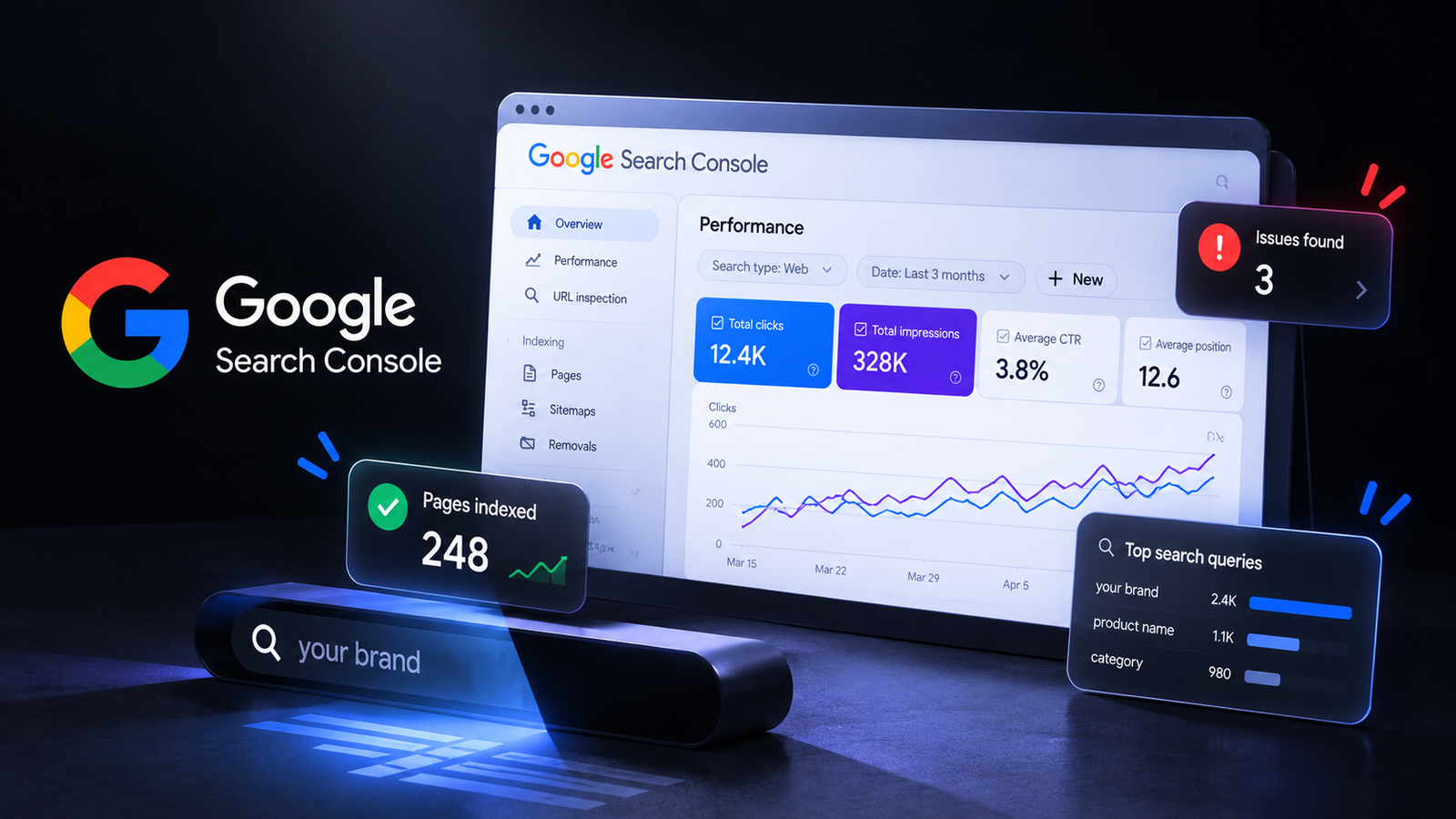
You wrote the posts. You hit publish. You shared the link with a few friends. Then nothing. Before you rewrite a single headline, check one thing: does Google even know your pages exist? Most people never check. This free tool tells you in minutes.
Summary
Google Search Console is a free tool from Google that shows whether your pages are indexed, which searches bring people to your site, and what technical problems are stopping pages from showing up. If your website is not showing on Google, it is the first place to look. You can submit your sitemap, request indexing for new pages, and see which keywords are close to ranking.
Internet Culture · Stacks · 002
The stack card
| What it does | Shows how Google sees your website |
| Cost | Free |
| Best for | Anyone with a website, especially new ones |
| Setup time | About 15 minutes |
| Works with | WordPress, RankMath, Shopify, any site you control |
| Skill needed | None. You just need access to your site. |
1 The room
A new marketing blog has fifteen good articles. Two months in, the owner is the only visitor. They start doubting everything. The titles. The writing. The topic.
Then they open Google Search Console for the first time. The answer takes thirty seconds to find. Only four of the fifteen pages are indexed. Google hasn’t added the other eleven to its results yet.
Nobody could find those articles, because as far as Google was concerned, they didn’t exist yet.
The writing was never the first problem. Getting found was.
2 What is Google Search Console?
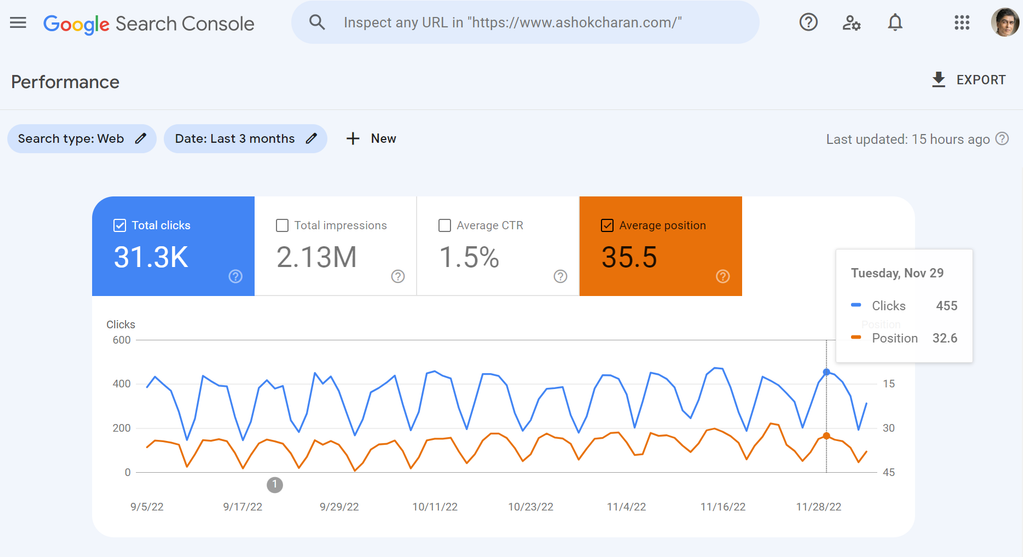
Google Search Console is a free dashboard that Google gives website owners. It’s Google telling you directly how it sees your site.
Google Analytics tells you what visitors do after they arrive. Google Search Console tells you what happens before they arrive. Which pages are in Google’s index, which searches your site shows up for, how often people click, and what’s broken.
If your website is not showing on Google, this is where you find out why.
3 The 7 Google Search Console reports that matter
01. Pages (indexing report). This shows which of your pages are indexed and which aren’t, with a reason for each. Common ones: “Discovered, currently not indexed” (Google knows the page but hasn’t added it yet) and “Crawled, currently not indexed” (Google looked at it and decided not to add it for now). On a new site, this is the most important report you have.
02. URL Inspection. Paste any page link into the bar at the top. It tells you if that page is on Google. If it isn’t, click “Request Indexing.” It doesn’t guarantee anything, but it asks Google to look at the page sooner.
03. Sitemaps. A sitemap is a list of all your pages. RankMath creates one for you automatically. Submitting it here helps Google find everything, instead of discovering pages one by one.
04. Performance (search performance report). This shows the searches people typed before your site appeared, plus four numbers: clicks, impressions (how often you showed up), click-through rate, and average position. Once you have a little data, this becomes a gold mine.
05. Queries sitting on page 2. Inside Performance, sort by position. Look for searches where you rank between 8 and 20. You’re close. Improving those pages is often the fastest way to your first real traffic.
06. Core Web Vitals. This shows whether your pages load fast and feel stable on mobile and desktop. Slow, jumpy pages can hurt both rankings and readers.
07. Links. This shows which other websites link to you, and which of your own pages link to each other. Internal links help Google understand what your site is about.
THE FOUND BEFORE GOOD RULE
A great article nobody can find does exactly as much work as a bad one. Check that you’re found before you judge whether you’re good.
Rule 1. Index first. If a page isn’t indexed, no title change will help. Fix indexing before anything else.
Rule 2. Then look for impressions. Impressions with no clicks means you’re showing up but people don’t want to click. That’s a title and description problem.
Rule 3. Then look for clicks. Clicks with no signups or reading time means the page doesn’t deliver what the title promised. That’s a content problem.
4 How to set up Google Search Console in 15 minutes
- Go to the Google Search Console website and sign in with your Google account.
- Click “Add property.” Choose “URL prefix” and enter your full website address, like
https://yoursite.com. - Verify you own the site. The easiest way on WordPress: RankMath has a Search Console connection in its settings. You can also use the HTML tag method and paste the code into RankMath’s Webmaster Tools section.
- Go to “Sitemaps” in the left menu. Type
sitemap_index.xmland click Submit. - Open URL Inspection. Paste the link to each of your published posts, one by one, and click “Request Indexing” for any that aren’t on Google yet.
- Wait. Data takes a few days to show up. Indexing new pages can take anywhere from days to weeks.
5 Why your website is not showing on Google (the usual reasons)
The site is new. Google takes time to trust new websites. A few weeks to a few months of slow results is normal.
Pages were never submitted. Without a sitemap and some links pointing to them, pages can sit unnoticed for a long time.
The site is set to hide from search engines. In WordPress, go to Settings, then Reading. Make sure “Discourage search engines from indexing this site” is unticked. It’s a common mistake, and it blocks everything.
Pages have no links pointing to them. If no other page on your site links to a post, Google may treat it as unimportant. Link your posts to each other.
The content looks thin or too similar to other pages. Google may skip pages it sees as low value. Specific, original content with real examples helps.
6 What Google Search Console will not do
It won’t make you rank. It shows you the problems. You still have to fix them.
It won’t show every single search. Some very rare searches are hidden for privacy.
It won’t show instant data. Numbers usually lag by a day or two.
It won’t tell you what visitors do on your pages. For that, pair it with Google Analytics or Microsoft Clarity.
7 Steal this: your first week with Google Search Console
01. Set it up today and submit your sitemap. It takes fifteen minutes.
02. Check the WordPress “Discourage search engines” box right now. Just in case.
03. Request indexing for every post you’ve published so far.
04. Link each of your posts to at least three other posts on your site.
05. Come back in two weeks. Open the Performance report and write down the searches you’re already showing up for, even if clicks are zero.
06. Pick the page with the most impressions and improve its SEO title and meta description to make it more clickable.
8 Frequently asked questions
Why is my website not showing on Google?
The most common reasons are that the site is new, pages haven’t been indexed yet, the WordPress setting that discourages search engines is turned on, or no pages link to the new content. Google Search Console’s Pages report shows the exact reason for each page.
How do I get my website indexed on Google faster?
Submit your sitemap in Google Search Console, use URL Inspection to request indexing for each new page, and link new posts from other pages on your site. Sharing pages on social platforms can also help Google discover them.
Is Google Search Console free?
Yes. Google Search Console is completely free for anyone who can verify they own or manage a website.
What is the difference between Google Search Console and Google Analytics?
Google Search Console shows how your site performs in Google Search before people click, including indexing, searches and rankings. Google Analytics shows what people do after they arrive on your site, such as pages viewed and time spent.
How long does it take for a new website to show up on Google?
It can take anywhere from a few days to several weeks for pages to be indexed, and often a few months before a new site starts ranking well for competitive searches. Submitting a sitemap and requesting indexing can help Google find pages sooner.