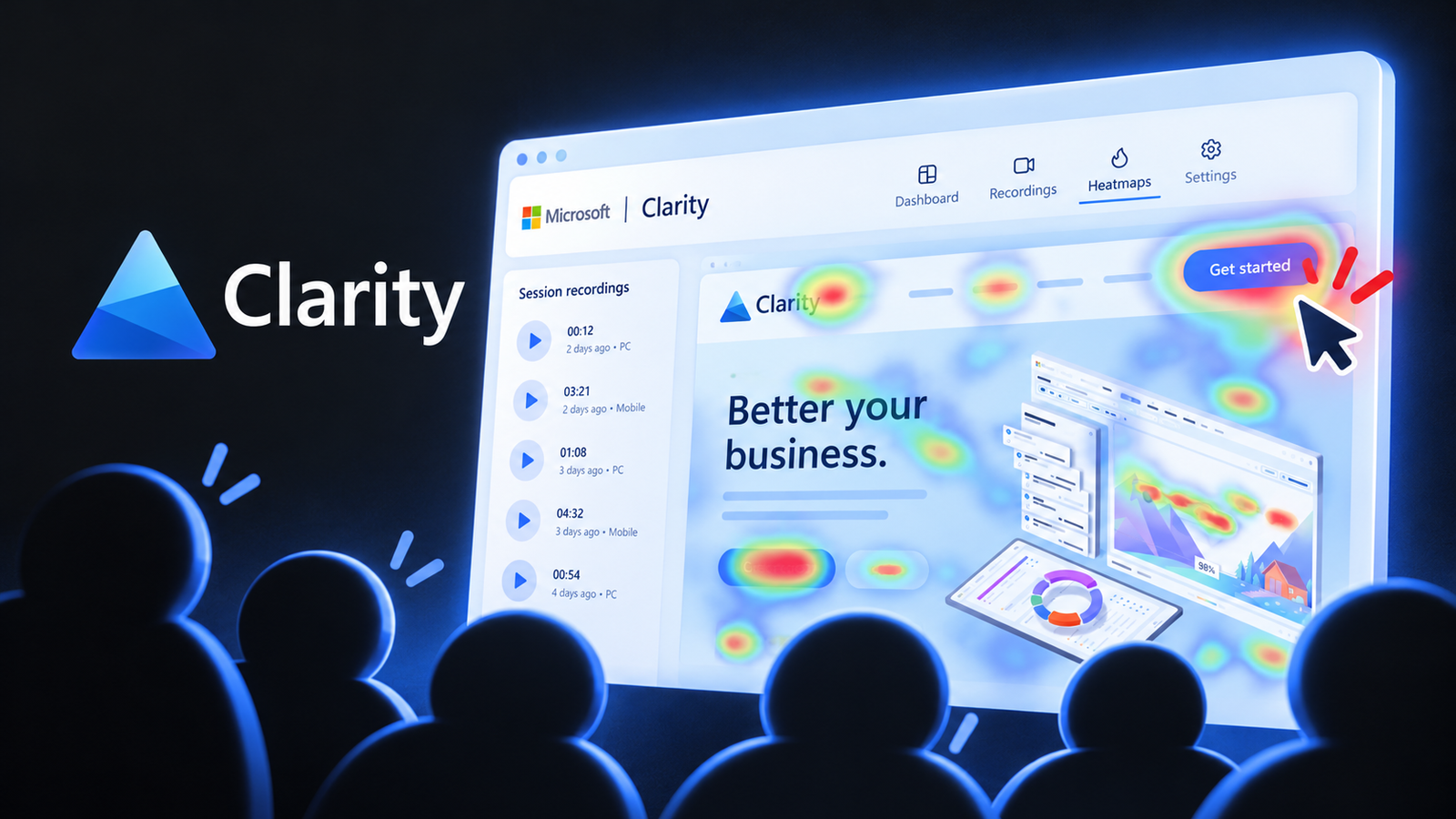
Your dashboard tells you 70% of visitors left the pricing page. It cannot tell you that half of them were tapping a button that does not work on mobile. That gap between what happened and why it happened is where most conversion problems hide.
Summary
Microsoft Clarity is a free website behaviour analytics tool from Microsoft. It records how real visitors use your site through session recordings, heatmaps and automatic flags like rage clicks and dead clicks. Marketers use it to find exactly where people get confused or stuck. It installs on WordPress in minutes and has no traffic limit.
Internet Culture · Stacks · 001
The stack card
| What it does | Shows what visitors actually do on your pages |
| Cost | Free |
| Best for | Marketers, founders, content teams, CRO and UX folks |
| Setup time | About 20 minutes |
| Works with | WordPress, Shopify, most website builders, Google Analytics |
| Skill needed | None to start. Some patience to watch recordings well. |
1 The room
A founder is staring at a landing page. Traffic is fine. Ads are working. Signups are flat.
The team argues. The designer thinks the headline is weak. The marketer blames the offer. The developer says the page loads fine.
Everyone has an opinion. Nobody has watched a single visitor use the page.
Someone installs Microsoft Clarity. Two days later they watch ten recordings. In six of them, visitors on mobile tap the “Book a demo” button, nothing happens, and they leave. The button was hidden behind a cookie banner on small screens.
Three weeks of debate. One recording to find the answer.
2 What is Microsoft Clarity?
Microsoft Clarity is a free tool that shows you how people behave on your website. Microsoft launched it in 2020, and it has stayed free since.
Your usual analytics, like Google Analytics, counts things. Visits, bounce rates, conversions. Microsoft Clarity shows you things. You can literally watch anonymised replays of visits, see where people click, and see how far they scroll.
Think of it this way. Analytics tells you the patient has a fever. Microsoft Clarity lets you see where it hurts.
3 The 7 Microsoft Clarity features that matter
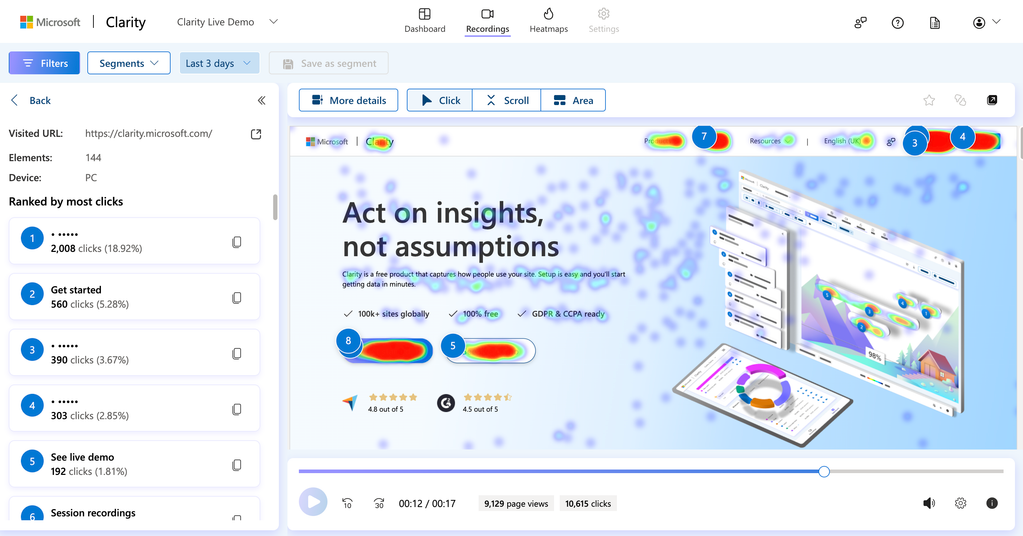
01. Heatmaps. Heatmaps show where people click and how far they scroll, as colour overlays on your page. Red means lots of activity. Blue means very little. Scroll heatmaps are the quiet heroes here. If only 30% of visitors reach your pricing section, your pricing is not the problem. Its position is.
02. Session recordings. Session recordings are anonymised replays of real visits. You see the mouse move, the pauses, the back-and-forth. This is where the “aha” moments come from, because you see hesitation that no chart can show.
03. Rage clicks. Rage clicks are when someone clicks the same spot again and again in frustration. Microsoft Clarity flags these automatically. They almost always point to something broken or something that looks clickable but is not.
04. Dead clicks. Dead clicks are clicks on things that do nothing. People tap an image, an icon or a heading, expecting it to open something. Each dead click is a small broken promise in your design.
05. Quick backs and excessive scrolling. A quick back is when someone lands on a page and immediately returns. Excessive scrolling is when someone scrolls up and down hunting for something. Both tell you the page did not match what the visitor expected.
06. Filters and segments. You can filter recordings by device, country, traffic source, pages visited and behaviour. This turns thousands of recordings into the fifteen that actually matter. “Mobile visitors from Instagram ads who rage clicked on the checkout page” is one filter away.
07. Google Analytics integration and AI summaries. Microsoft Clarity connects to Google Analytics, so you can jump from a number to the recordings behind it. It also offers Copilot summaries that describe patterns across sessions in plain words. Treat those as a starting point, not a verdict.
THE FRUSTRATION FIRST RULE
Do not open Microsoft Clarity and watch random recordings. You will waste an afternoon and learn nothing. Start with frustration, on the pages that make you money.
Rule 1. Money pages first. Pricing, checkout, signup, demo booking. Ignore the blog until these are clean.
Rule 2. Filter for pain. Rage clicks, dead clicks and quick backs. These are visitors telling you something is wrong.
Rule 3. Five of the same is a pattern. One odd recording is a person. Five recordings with the same stumble is a problem worth fixing this week.
4 Who gets the most out of Microsoft Clarity?
Founders and small teams. You get a view into your customer’s head without paying for research. It is the cheapest customer research you will ever run.
Performance marketers. When a campaign gets clicks but no conversions, the landing page is usually the leak. Session recordings show whether visitors from a specific ad are confused, distracted or blocked.
Content and SEO teams. Scroll heatmaps show where readers drop off in long articles. If most people stop reading before your key section, move it up.
Designers and developers. Rage clicks and dead clicks are a bug list your users write for you, for free.
D2C and e-commerce brands. Watching real shoppers struggle with size charts, coupon boxes or delivery pincode fields is humbling. It is also where the fastest revenue wins hide.
5 How to set up Microsoft Clarity on WordPress in 20 minutes
- Go to the Microsoft Clarity website and sign in with a Microsoft, Google or Facebook account.
- Click “Add new project”, enter your site name and URL.
- On WordPress, install the official Microsoft Clarity plugin from the plugin directory, or paste the tracking code into your site header.
- Connect the plugin to your project and save.
- Check the masking setting. The default hides sensitive text like form inputs. Keep it on for any page that collects personal details.
- Link your Google Analytics property in the Clarity settings.
- Wait a day or two for data to build up. Then start with the Frustration First Rule.
One important note on privacy. You are recording visitor behaviour, so mention it clearly in your privacy policy and cookie notice. India’s Digital Personal Data Protection Act, 2023 puts more responsibility on how businesses handle personal data, so keep masking on and collect only what you need.
6 What Microsoft Clarity will not do for you
It will not tell you what to fix. It shows you the problem. You still have to think.
It will not replace talking to customers. You can see that someone hesitated. You cannot see what they were thinking. Pair recordings with a few real conversations.
It will not work well on a tiny amount of traffic. If your site gets twenty visits a week, you will not see patterns for a while.
It will not keep every recording forever. Save or label the important ones as you find them, so they are there when you need them in a team meeting.
7 Steal this: your first week with Microsoft Clarity
01. Install it today. Free tools that are “on the list” never get installed.
02. Pick your single most important page. Watch ten recordings of it, filtered to mobile.
03. Open the scroll heatmap on your homepage. Note where half of your visitors stop. Is anything important below that line?
04. Filter for rage clicks across the site. Make a list of every element that shows up more than twice.
05. Fix one thing. Just one. Then watch ten new recordings the following week and see if the stumble is gone.
06. Share one recording in your next team meeting. Nothing ends a design debate faster than watching a real customer get stuck.
8 Frequently asked questions
Is Microsoft Clarity really free?
Yes. Microsoft Clarity is free to use, including heatmaps, session recordings and its automatic insights, and Microsoft does not put a traffic limit on it. Check the official site for the latest terms, since features and policies can change.
What does Microsoft Clarity track?
Microsoft Clarity tracks how visitors interact with your pages: clicks, scrolls, mouse movement and page navigation. It turns this into session recordings, heatmaps and flags like rage clicks, dead clicks and quick backs. Sensitive text is masked by default.
What are rage clicks?
Rage clicks are repeated, rapid clicks on the same spot, usually made out of frustration. They often point to a broken button, a slow element or something that looks clickable but is not. Microsoft Clarity detects them automatically.
Does Microsoft Clarity slow down a website?
Microsoft Clarity uses a lightweight script that loads in the background, and most sites see no noticeable impact. As with any script, it is worth checking your page speed before and after installing.
How do I use session recordings to improve conversions?
Filter session recordings to your key pages, like pricing or checkout, and to frustration signals such as rage clicks and quick backs. Look for the same stumble happening across several visitors, fix it, then watch new recordings to confirm the problem is gone.